
Notepad++: JSON und XML formatieren, Spaltenmodus nutzen
Vom unleserlichen Datenblock zur übersichtlichen Datei: praktische Anleitungen für JSON, XML, Spaltenbearbeitung und die Suche mit Regex.
Du möchtest in Notepad++ JSON formatieren, XML einrücken oder mehrere Zeilen gleichzeitig bearbeiten? Dafür brauchst du nur wenige Handgriffe. Dieser Leitfaden zeigt dir die passenden Plugins, konkrete Beispiele und die wichtigsten Tastenkombinationen.
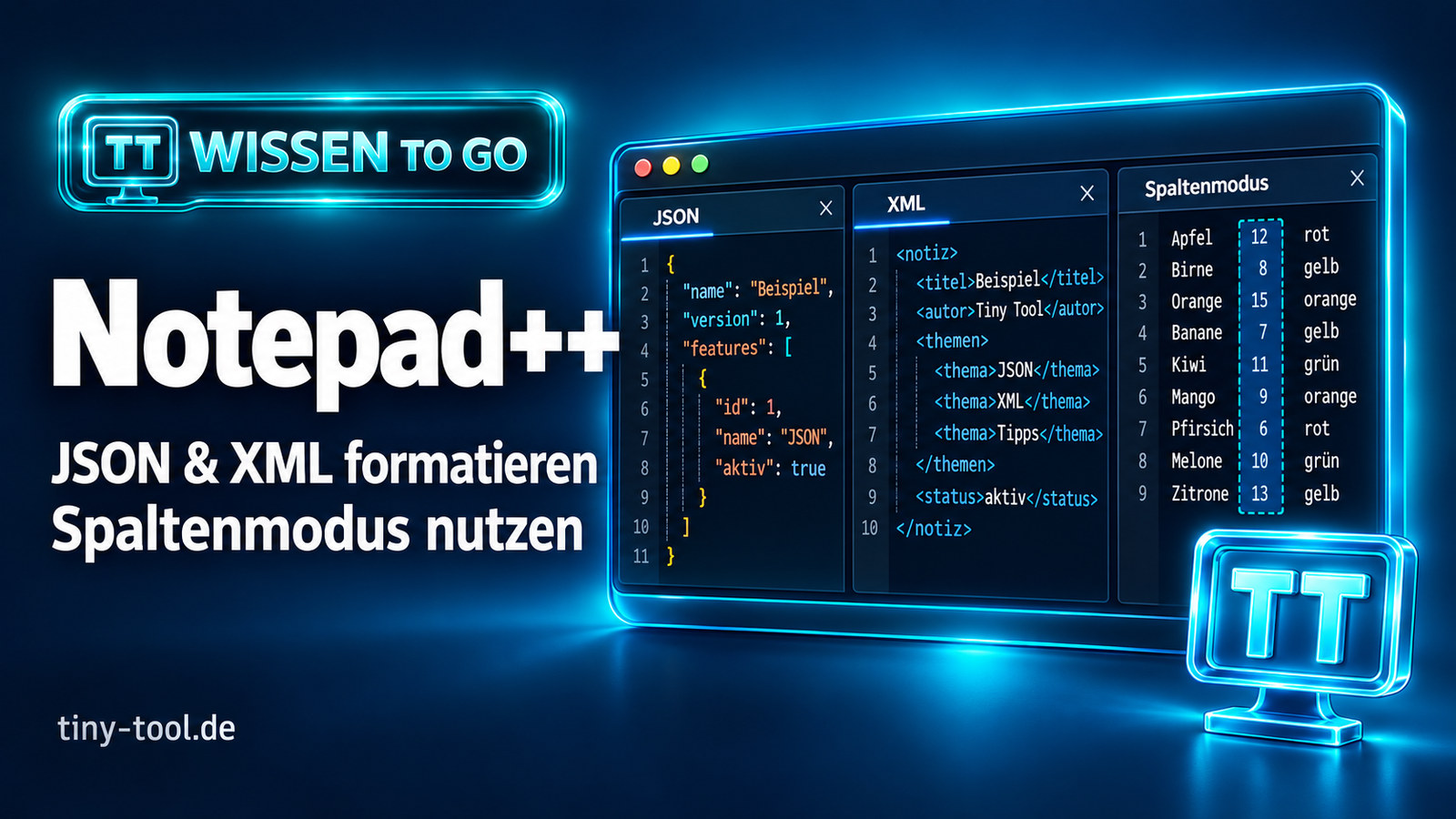
- JSON lesbar machen: JsonTools installieren und „Pretty-print“ ausführen.
- XML einrücken: XML Tools und „Pretty print“ verwenden.
- Spalten bearbeiten: mit Alt + Mausziehen eine rechteckige Auswahl erstellen.
- Unter Linux arbeiten: Notepad++ über WINE nutzen; eine offizielle native Linux-Version gibt es nicht.
Plugins in Notepad++ installieren
Für die folgenden Formatierungsaufgaben verwenden wir JsonTools und XML Tools. Installiere die Erweiterungen über die integrierte Plugin-Verwaltung:
- Öffne Plugins → Plugins Admin. Die deutsche Oberfläche bezeichnet die Verwaltung als Plugin-Verwaltung.
- Suche unter den verfügbaren Plugins nach JSON Tools (Plugin: JsonTools) beziehungsweise XML Tools und setze die Häkchen.
- Klicke auf Install. Speichere offene Dateien, bevor Notepad++ neu startet.
- Danach findest du die Erweiterungen im Menü Plugins.
Die nachfolgenden Plugin-Befehle sind mit ihren englischen Namen angegeben. So kannst du sie auch dann wiedererkennen, wenn Notepad++ selbst auf Deutsch eingestellt ist. Die offizielle Plugin-Dokumentation beschreibt die Verwaltung im Detail.
JSON in Notepad++ formatieren
Wenn eine API-Antwort als lange Textzeile ankommt, lässt sich ihre Struktur schlecht überblicken. Beim Pretty Print werden die verschachtelten Ebenen durch Einrückungen und Zeilenumbrüche sichtbar.
- Öffne deine JSON-Datei oder füge den folgenden Beispieltext in einen neuen Tab ein. JsonTools erwartet UTF-8. Falls nötig, verwende Codierung → Konvertiere zu UTF-8.
- Markiere mit
Strg + Aden gesamten Inhalt. JsonTools kann eine zuvor bearbeitete Teilauswahl behalten; die vollständige Auswahl legt den gewünschten Bereich ausdrücklich fest. - Wähle Plugins → JsonTools → Pretty-print current JSON file.
Vorher: JSON in einer Zeile
{"editor":"Notepad++","plugins":["JsonTools","XML Tools"],"kostenlos":true}Nachher: lesbare Struktur
{
  "editor": "Notepad++",
  "plugins": [
    "JsonTools",
    "XML Tools"
  ],
  "kostenlos": true
}
Die genaue Darstellung hängt von deinen Plugin-Einstellungen ab. Zum Zusammenklappen auf eine kompakte Darstellung gibt es Compress current JSON file. Für verschachtelte Daten ist auch Open JSON tree viewer hilfreich.
Formatieren ist keine vollständige Validierung. JsonTools kann auch fehlerhafte oder erweiterte JSON-Eingaben einlesen. Die Einstellung logger_level = STRICT steuert die strenge Fehlerberichterstattung; ein gelungenes Formatieren allein beweist noch keine gültige JSON-Syntax. Ob Pflichtfelder, Datentypen oder Werte zu deiner Schnittstelle passen, muss zusätzlich anhand ihrer Vorgaben geprüft werden.
Falls es nicht klappt: Prüfe die Fehlermeldung und die Datei auf fehlende Kommas, unvollständige Klammern oder Anführungszeichen. JSON verwendet doppelte Anführungszeichen für Schlüssel und Zeichenketten. JsonTools: Befehle und Parser-Einstellungen

XML in Notepad++ formatieren und prüfen
Für XML ist XML Tools die passende Erweiterung. Das Plugin bietet Pretty Print, eine Syntaxprüfung und die Validierung gegen XSD oder DTD.
- Öffne die XML-Datei in einem eigenen Tab.
- Wähle Plugins → XML Tools → Pretty print.
- Prüfe das Ergebnis, bevor du die Datei speicherst. Die angebotenen Formatierungsvarianten können sich je nach Plugin-Version unterscheiden.
Vorher: kompakter XML-Text
XML Tools Nachher: Elemente auf einen Blick
XML Tools
Bei XML kann zusätzlicher Leerraum relevant sein, etwa bei gemischtem Text- und Elementinhalt. Formatiere solche Dokumente zunächst als Kopie und prüfe, ob die empfangende Anwendung den Inhalt weiterhin wie erwartet verarbeitet. XML Tools: offizielles Projekt
Notepad++-Spaltenmodus aktivieren
Im Spaltenmodus, auch Column Mode genannt, markierst du einen rechteckigen Bereich über mehrere Zeilen. Das ist praktisch, wenn gleich aufgebaute Zeilen an derselben Position geändert werden sollen.
- Mit der Maus: Halte
Altgedrückt und ziehe mit der linken Maustaste. - Mit der Tastatur: Halte
Alt + Shiftgedrückt und erweitere die Auswahl mit den Pfeiltasten. - Bearbeiten: Tippe den neuen Text; er ersetzt den markierten Bereich in den ausgewählten Zeilen.
- Beenden: Drücke
Escoder bewege den Cursor wieder normal.
Beispiel: ein gemeinsames Präfix austauschen
DEV_API
DEV_WORKER
DEV_WEB
Verwende für dieses Beispiel den normalen Einfügemodus (INS). Markiere die ersten drei Zeichen aller drei Zeilen als Rechteck und tippe TEST. Das Ergebnis lautet:
TEST_API
TEST_WORKER
TEST_WEB
Für gleichbleibenden Text oder fortlaufende Zahlen in einer Auswahl gibt es außerdem Edit → Column Editor. Das funktioniert ohne zusätzliches Plugin.
Suchen und Ersetzen mit Regex
Eine normale Suche findet einen festen Text. Eine Regex-Suche findet ein Muster. Das hilft beispielsweise, wenn sich Werte ändern, der Aufbau der Zeilen aber gleich bleibt.
Beispiel: eine Einstellung am Zeilenanfang ändern
Aus timeout=30 soll timeout=60 werden. Das folgende Beispiel erfasst vollständige Zeilen mit einer nichtnegativen ganzen Zahl, ohne zusätzliche Leerzeichen oder Kommentare:
- Öffne mit
Strg + Hden Dialog zum Ersetzen. - Wähle als Suchmodus Regulärer Ausdruck / Regular expression.
- Trage bei Suchen nach das Muster
^timeout=[0-9]+$ein. - Trage bei Ersetzen durch den Text
timeout=60ein. - Kontrolliere zuerst einen Treffer mit Weitersuchen und ersetze dann die gewünschten Treffer.
^ steht für den Zeilenanfang, [0-9]+ für eine oder mehrere Ziffern und $ für das Zeilenende. Dadurch passen beispielsweise timeout=5 und timeout=120. Zeilen wie timeout=30.5, timeout=-1 oder timeout=30 # Kommentar bleiben unverändert.
Mit Strg + Shift + F suchst du auch in Dateien eines Verzeichnisses. Begrenze Ordner und Dateifilter auf die tatsächlich benötigten Dateien. Offizielle Such- und Regex-Dokumentation

Notepad++-Tastenkombinationen für den Alltag
Strg ist die deutsche Bezeichnung für Ctrl. Die Tabelle zeigt Standardbelegungen; eigene Einstellungen können davon abweichen.
| Aktion | Tastenkombination | Voraussetzung |
|---|---|---|
| Suchen | Strg + F | Integriert |
| Ersetzen | Strg + H | Integriert |
| In Dateien suchen | Strg + Shift + F | Integriert |
| Rechteckig markieren | Alt + Shift + Pfeiltasten | Integriert |
| JSON formatieren | Strg + Alt + Shift + P | JsonTools |
| JSON komprimieren | Strg + Alt + Shift + C | JsonTools |
| JSON-Baumansicht öffnen | Strg + Alt + Shift + J | JsonTools |
Plugin-Kürzel prüfst du unter Settings → Shortcut Mapper → Plugin commands. Seit JsonTools 8.4 kann die Einstellung keyboard_shortcuts die Plugin-Standardkürzel ein- oder ausschalten. Wenn ein Kürzel nicht greift oder anders belegt ist, verwende den entsprechenden Menüeintrag. Für XML Tools ist der Menüweg deshalb der verlässlichere Einstieg.
Wann sich Notepad++ lohnt
Notepad++ ist ein kostenloser Open-Source-Editor für Windows. Er eignet sich zum Bearbeiten von Textdateien, Logs, Konfigurationen und Quelltext. Mehrere Dateien lassen sich in Tabs öffnen; Syntaxhervorhebung hilft beim Lesen.
Besonders nützlich ist er für kleine, klar umrissene Aufgaben: eine Einstellung finden, einen Datenblock untersuchen oder gleich aufgebaute Zeilen ändern. Ob du einen Editor oder eine umfangreiche Entwicklungsumgebung brauchst, hängt von der Aufgabe ab. Für Debugging und die Verwaltung größerer Softwareprojekte ist eine IDE oft die passendere Ergänzung.
Warum ich Notepad++ selbst einsetze
Ich greife zu Notepad++, wenn ich Logs prüfen, JSON übersichtlich darstellen oder mehrere Dateien parallel bearbeiten möchte. Die Regex-Suche und der Spaltenmodus sind dabei besonders praktisch. Mit der Plugin-Verwaltung ergänze ich die Werkzeuge, die ich für JSON und XML benötige.
Für die Windows-Version findest du die Downloads auf der offiziellen Notepad++-Website.
Notepad++ unter Ubuntu und Linux: über WINE
Notepad++ ist eine Windows-Anwendung. Unter Linux wird sie mit einer Kompatibilitätsschicht wie WINE ausgeführt. Im Snap Store gibt es dafür das Paket Notepad++ (WINE), veröffentlicht von Taqi Raza (mmtrt). Es ist ein Paket eines Drittanbieters.
Auf einem Ubuntu-System mit eingerichtetem Snap kannst du es so installieren:
sudo snap install notepad-plus-plusWenn du Zugriff auf unterstützte externe Datenträger benötigst, kannst du die entsprechende Schnittstelle verbinden:
sudo snap connect notepad-plus-plus:removable-mediaWelche Version und Kanäle aktuell verfügbar sind, zeigt die Paketbeschreibung im Snap Store. Die dortige Version kann von der aktuellen Windows-Ausgabe abweichen. Der optionale Datenträger-Befehl ist auch im Repository des Snap-Pakets dokumentiert.
Häufige Fragen zu Notepad++
Warum wird JSON nicht automatisch eingerückt?
Syntaxhervorhebung und Formatierung sind unterschiedliche Funktionen. Wenn JSON farbig angezeigt wird, ist es deshalb noch nicht eingerückt. Verwende den Formatierungsbefehl des installierten JSON-Plugins.
Welches Plugin brauche ich für JSON und XML?
Diese Anleitung verwendet JsonTools für JSON und XML Tools für XML. Du brauchst nur die Erweiterung zu installieren, die zu deiner Aufgabe passt.
Kann ich den Spaltenmodus ohne Plugin nutzen?
Ja. Die rechteckige Auswahl und der Column Editor gehören zu Notepad++ selbst.
Wo kann ich in Notepad++ Wörter zählen?
Öffne View → Summary, in der deutschen Oberfläche Ansicht → Datei-Info. Dort findest du unter anderem die Wort-, Zeichen- und Zeilenzahl der aktuellen Datei. Dokumentation zur Datei-Zusammenfassung
Gibt es eine offizielle native Notepad++-Version für Linux?
Nein. Das hier beschriebene Snap-Paket führt die Windows-Anwendung über WINE aus.
Mein Fazit
Notepad++ ist für viele kleine Text- und Datenaufgaben ein praktisches Werkzeug. Mit JsonTools wird ein JSON-Block übersichtlich; XML Tools ergänzt Formatierung und Prüfung. Der integrierte Spaltenmodus spart Handarbeit bei gleich aufgebauten Zeilen. Am besten probierst du zuerst genau die Funktion aus, die deine nächste Aufgabe erleichtert.
Quellen und weitere Anleitungen
Dokumentation und Projektangaben geprüft am 4. Oktober 2026.
- Notepad++: offizielle Website
- Notepad++-Handbuch: Plugins
- Notepad++-Handbuch: Spaltenmodus und Bearbeitung
- Notepad++-Handbuch: Suche und reguläre Ausdrücke
- JsonTools: Projekt und Dokumentation
- XML Tools: offizielles Plugin-Projekt
- JSTool: Hinweis zur Einstellung der Notepad++-Ausgabe
- Snap Store: Notepad++ (WINE)
- Snap-Paket: Installation und optionale Verbindungen
- Notepad++: offizielle deutsche Menübezeichnungen
- JSON-Spezifikation: RFC 8259
- XML-Spezifikation: Bedeutung von Leerraum
Passend dazu auf tiny-tool.de: Windows-Dienste mit NSSM einrichten und Linux-Distributionen vergleichen.


 tiny-tool.de